Create and enter an environment
Open ide.cascoldatom.com. Sign in with the account and temporary password supplied by your administrator, and enter the image verification code. Click the image to refresh it if needed. On your first sign-in, set a new password with at least 12 characters.
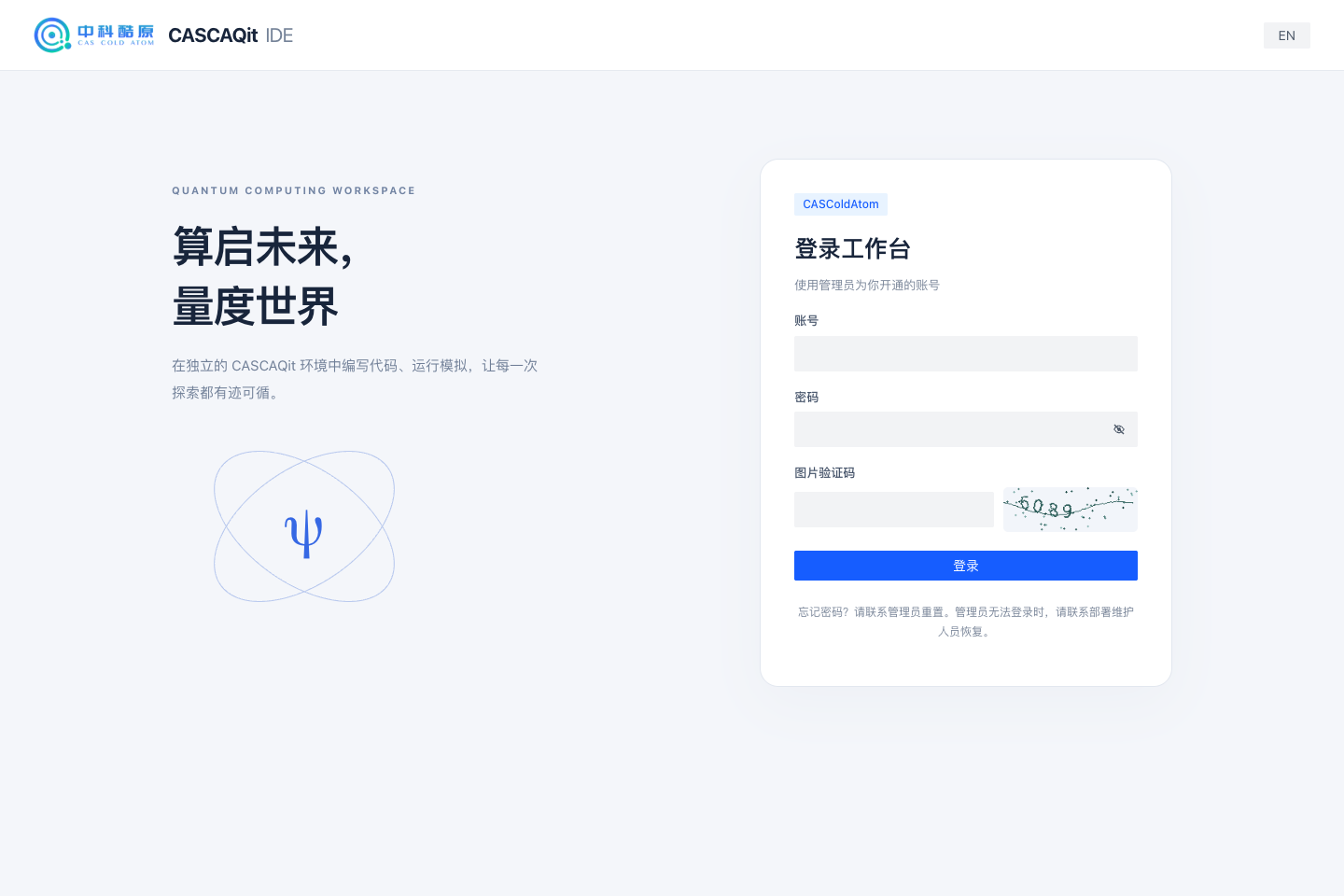
The platform sign-in page. Use the account supplied by your administrator and the CAPTCHA shown on your current page. Open full-size image
Create a learning environment
- Open My environments and check your maximum profile, retained limit and concurrent limit.
- Select New environment, give it a recognizable name such as
bell-practice, and choose an available compute profile. Use the CPU, memory and disk values shown in the current interface. - Wait for Preparing storage to finish. When the environment is Stopped, select Start.
- Wait for Running, then select Open IDE. The workspace opens in a new tab; check your browser's popup settings if no tab appears.
The retained limit counts environments that have not been deleted, including stopped environments. The concurrent limit restricts how many can run together. Stopping an unused environment releases running capacity but keeps its retained slot.
| Status | What to do |
|---|---|
| Preparing storage / Starting | Wait for the state to update rather than creating replacement environments |
| Waiting | Read the explanation; available account quota does not guarantee free machine capacity |
| Running | Open the IDE; return to the console for a fresh entry if access expires |
| Stopping / Deleting | The operation has not finished; wait for the observed state to change |
| Failed | Keep the environment ID and message, then use troubleshooting |
An environment is assigned to a runtime machine. If that machine is offline, an administrator must check the original machine and storage. Temporary unavailability does not establish that files were deleted.
Open the quantum workbench
An empty JupyterLab workspace opens the quantum workbench. With an existing layout, use the Launcher or command palette entry CASCAQit: 量子工作台. The Bell and two-atom templates create new notebooks without replacing existing files.
Choose the Bell 纠缠实验 template, wait for the Python kernel, and select 运行全部 (Run all). For a cell-by-cell introduction, follow Your first notebook experiment. Recent files on the workbench cover notebooks in the project root; use the file browser for deeper directories.
Stop when you finish
Save notebooks and scripts, return to the console, select Stop, and wait for Stopped. Next time, use Start and Open IDE to access the saved files. Python variables and running computations are not restored with those files.
Closing a browser tab does not stop an environment. The platform may stop idle environments according to its policy. Save intermediate results during long experiments; see Save your work.
Delete stops computation and permanently removes the environment's files and outputs. It requires the environment name as confirmation and has no recycle bin. Use Stop when you intend to return later.
Changing your password revokes other console and IDE sessions. Ask an administrator to reset a forgotten password. Keep passwords, entry tickets and token-bearing URLs out of notebooks and issue reports.